How to connect Gmail to folk CRM in 5 steps (2026)
Disclosure: Some links on this page are affiliate links #Ad. If you buy through them, I earn a small commission at no extra cost to you. Prices quoted are converted from USD at the mid-market rate on the publish date and may shift a little every day. Full honesty policy →
folk’s Gmail connection is one of its best features: once set up, every reply you send and receive automatically lands against the right contact’s timeline. No copy-pasting. Here’s the exact setup.
Start folk free for 14 days → if you haven’t already. The sync works on all paid plans.
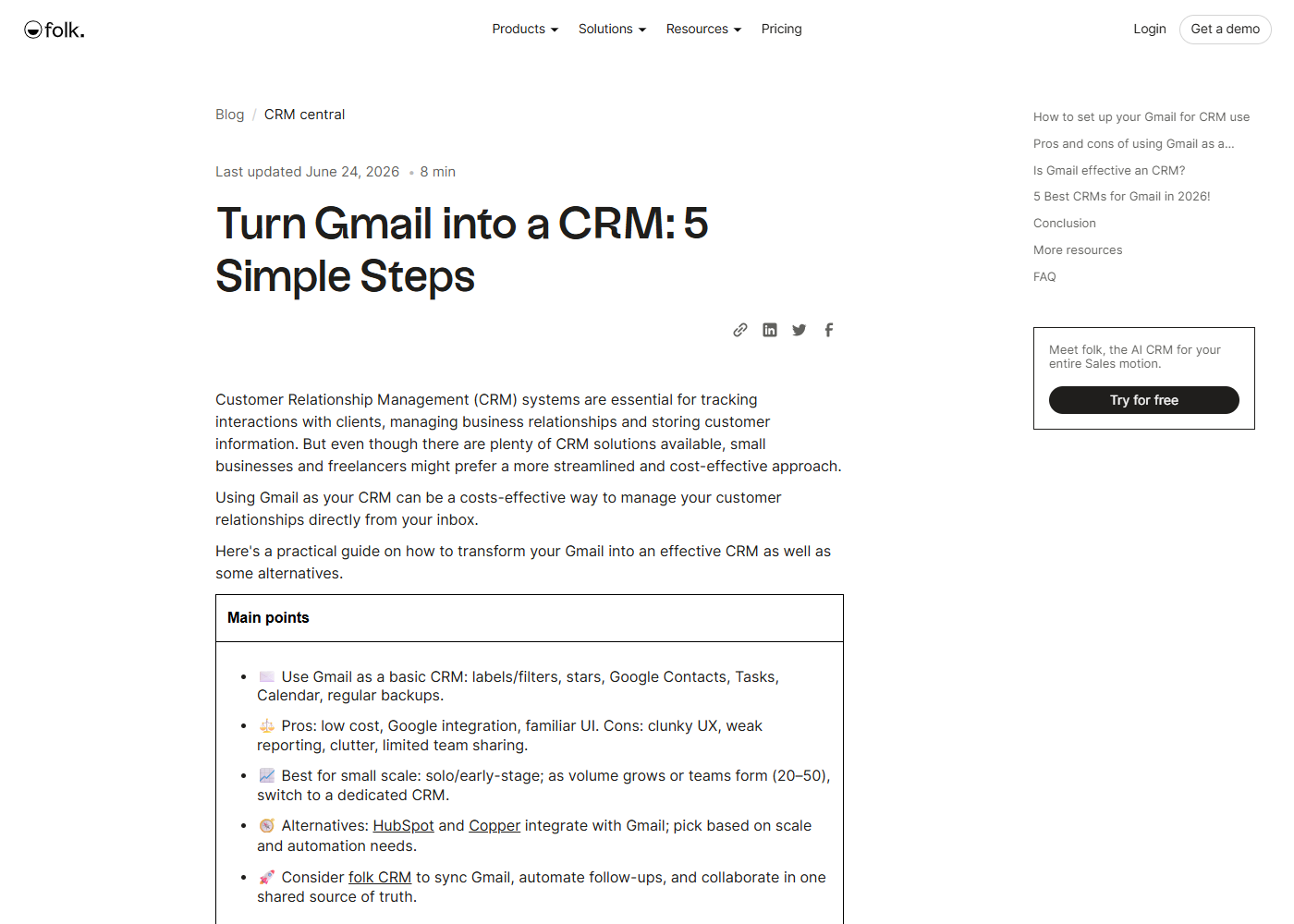 folk’s own “Gmail as a CRM” article — the sync is their flagship feature, not a side one.
What the sync actually does
Before you connect, know what it will and won’t do:
- It syncs: sent/received emails from the mailbox you connect, matched to contacts already in folk. New replies show on the contact’s activity.
- It also syncs: your Google Calendar events (meetings become activities on contacts).
- It does NOT: copy every email you’ve ever had into folk. It links new emails from the connect day forward, by default.
- It does NOT: reply to emails or send on your behalf unless you deliberately use folk’s email sequences (Premium only).
Permissions you’ll grant Google:
- Read your emails and send emails on your behalf (needed to sync and send sequences).
- Read your calendar.
- Read your Google contacts.
If any of that makes you uncomfortable, you can disconnect any time from folk’s settings or your Google account’s security page.
The 5-step setup
1. Open folk, go to Settings → Integrations
Top-right profile icon → Settings. In the left menu, pick Integrations (sometimes labelled “Connections” or “Accounts”).
2. Click “Connect Google”
Pick the Google / Gmail card. Click Connect or Add account.
3. Sign in and grant permission
A Google popup opens. Pick the Gmail account you want to connect. Google will show the list of permissions folk is asking for. Read it once, then click Allow.
If you see a “Google hasn’t verified this app” warning, that just means folk is a third-party app (every CRM gets this). Click Advanced → Go to folk.
4. Pick what to sync
Back in folk, you’ll see sync options:
- Sync contacts - imports your Google contacts into folk. Switch this ON only if you want all your contacts imported; leave OFF if you prefer to add contacts manually.
- Sync emails - matches past and future emails to the right contact. Switch this ON for most workflows.
- Sync calendar - meeting events show on contact timelines. Switch this ON for sales/relationship work.
5. Install the folkX Chrome extension
In folk’s menu, find folkX (or go to the Chrome Web Store and search “folkX”). Install it. Pin it to your toolbar. Now when you’re in Gmail, LinkedIn or any site, one click sends the contact to folk.
Two settings most people miss
1. Share emails with your team. By default, emails you sync are private to you. On Premium, you can share threads with your team so a contact’s full history is visible to everyone. Settings → Email → Share with team.
2. Email signature. Add your email signature inside folk (Settings → Email → Signature) so sequences and direct emails from folk match your Gmail style. Otherwise your sequences go out looking different from your normal mail.
Common problems
- “My emails aren’t appearing against the contact.” Check the email address on the contact matches exactly. folk matches on the full email string.
- “Sync is slow.” First-time sync of a big mailbox takes a few hours. Normal.
- “I disconnected and nothing works.” Reconnect; folk re-matches without duplicating.
When to upgrade
Standard includes Gmail sync. Email sequences (automated follow-ups) need Premium (Rs 4,608 / seat / month billed yearly). If you plan to send cold outreach or follow-up sequences, Premium pays for itself.
The steps above describe folk’s standard OAuth flow for Google integrations. Menu labels can change - if something’s moved in your trial, use folk’s own help center to confirm. I’ll update this post the moment I notice a UI change. Prices in Rs at the live mid-market rate - see the folk pricing post for the maths.